Branding SharePoint 2010 Collaboration Sites – Part 2 in a Series
In part one of this series on branding SharePoint 2010 collaboration sites I posted a bit about how the new Theming engine works in SharePoint 2010. In this post, we’ll be going over the new and improved CSSRegistration control in SharePoint 2010.
A history lesson; the CSSRegistration control in SharePoint 2007
The CSSRegistration control in SharePoint 2007 basically has one property you can set, the Name is the Url to the CSS file that you want to register. When you register a style sheet through the control, it adds the CSS file to an alphabetically sorted list. The style sheets in this list are then emitted as HTML <link> elements by the CSSLink control.
If you required one CSS file to be emitted before another, you would need to name them accordingly. For example:
<SharePoint:CSSRegistration Name="foo.css" runat="server" />
<SharePoint:CSSRegistration Name="bar.css" runat="server" />
Even though I registered foo.css before bar.css, the HTML on the rendered page would look like so:
<link rel="stylesheet" type="text/css" href="bar.css"/>
<link rel="stylesheet" type="text/css" href="foo.css"/>
<link rel="stylesheet" type="text/css" href="/_layouts/1033/styles/core.css?rev=..."/>
bar.css would come before foo.css and what’s this core.css doing here? Somehow, someone at MS decided that the core.css containing ALL of the base CSS rules for WSS should override any custom CSS!
As a workaround, you could set the DefaultUrl property for the CSSLink control to point to a single CSS file that would come after core.css, and then use @import to link to any additional custom CSS files.
The fact that core.css was emitted after any style sheets registered using CSSRegistration made the CSSRegistration control all but useless in 2007.
The shiny new CSSRegistration control in SharePoint 2010
So things are much better in the SharePoint 2010 world. If you examine the documentation for the SharePoint 2010 version of the CSSRegistration control, you’ll find the addition of the following properties, which currently have no descriptions to their usage in the SDK:
RevealToNonIE (boolean)
I assume this property would allow you to register IE-only style sheets. This doesn’t seem to be working in Beta 2 though as it doesn’t matter whether I set this to true or false, the CSS files would get emitted regardless of the browser I was using.
ConditionalExpression (string)
Another assumption that this would allow us to set certain conditions in order for the style sheet to appear in HTML. Nothing at all in the way of documentation nor could I find any examples in the 14 Hive as of Beta 2.
This property is an Internet Explorer Conditional Comment. For example, if we wanted to link to a style sheet specific to IE 7 or greater, we can do this:
<SharePoint:CSSRegistration Name="foo.css" ConditionalExpression="gte IE 7" runat="server" />
The following markup would be emitted:
<!--[if gte IE 7]>
<link rel="stylesheet" type="text/css" href="foo.css"/>
<![endif]-->
After (string)
This property is what was sorely missing in 2007. We can now tell the CSSLink control to emit the registered style sheet after another CSS file. You can either define just the leaf filename, ie bar.css or the path to the CSS file, ie /foo/bar.css. If you don’t use the After property, style sheets will still be emitted by alphabetical order. For example:
<SharePoint:CSSRegistration Name="bar.css" After="foo.css" runat="server" />
<SharePoint:CSSRegistration Name="foo.css" runat="server" />
bar.css is emitted after foo.css because we specified the After property when we registered bar.css:
<link rel="stylesheet" type="text/css" href="foo.css"/>
<link rel="stylesheet" type="text/css" href="bar.css"/>
<link rel="stylesheet" type="text/css" href="/_layouts/1033/styles/Themable/corev4.css?rev=..."/>
corev4.css IS STILL emitted after everything else for whatever reason, unless you use the After=”corev4.css” property when registering AND there are a few gotchas that you need to be aware of.
Gotcha 1: You’re never sure of the sort order
As of Beta 2, there’s some weirdness when you register multiple style sheets that all require to be after the same CSS file. They are no longer sorted alphabetically but in most cases they end up being last in first out:
<SharePoint:CSSRegistration Name="1.css" After="corev4.css" runat="server" />
<SharePoint:CSSRegistration Name="2.css" After="corev4.css" runat="server" />
<SharePoint:CSSRegistration Name="3.css" After="corev4.css" runat="server" />
I was expecting 1, 2, 3… but instead I get 3, 2, 1…
<link rel="stylesheet" type="text/css" href="/_layouts/1033/styles/Themable/corev4.css?rev=..."/>
<link rel="stylesheet" type="text/css" href="3.css"/>
<link rel="stylesheet" type="text/css" href="2.css"/>
<link rel="stylesheet" type="text/css" href="1.css"/>
Gotcha 2: I need something AFTER another thing…
The other thing to take note on is when you need to define nested After. For example, I need to make sure that the style sheets are emitted in the order 1, 2, 3, 4:
<SharePoint:CSSRegistration Name="1.css" runat="server" /> <SharePoint:CSSRegistration Name="2.css" After="1.css" runat=â€server" /> <SharePoint:CSSRegistration Name="3.css" After="2.css" runat="server" /> <SharePoint:CSSRegistration Name="4.css" After="3.css" runat="server" />
We don’t get what we would expect the result to be, instead it comes out as 1, 4, 3, 2:
<link rel="stylesheet" type="text/css" href="1.css"/>
<link rel="stylesheet" type="text/css" href="4.css"/>
<link rel="stylesheet" type="text/css" href="3.css"/>
<link rel="stylesheet" type="text/css" href="2.css"/>
It looks like as a general rule of thumb, you should register the style sheet which comes after another one FIRST. So in order to get 1, 2, 3, 4 we need to define our registration like so:
<SharePoint:CSSRegistration Name="4.css" After="3.css" runat="server" />
<SharePoint:CSSRegistration Name="3.css" After="2.css" runat="server" />
<SharePoint:CSSRegistration Name="2.css" After="1.css" runat="server" />
<SharePoint:CSSRegistration Name="1.css" runat="server" />
EnableCssTheming (boolean)
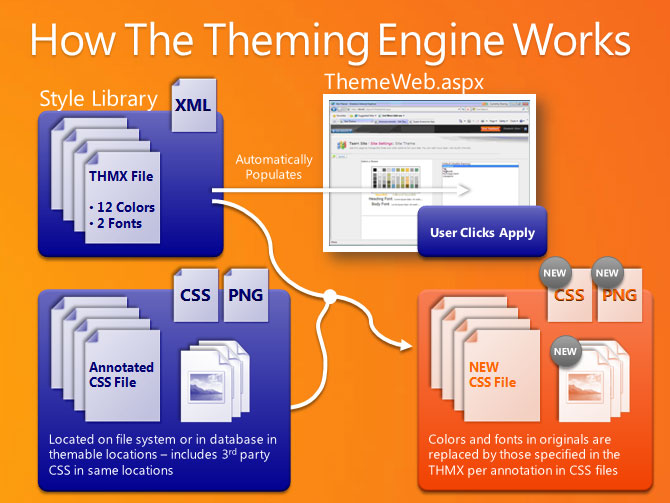
Remember those “Themable folders” and compile time directives in the CSS files I mentioned about in Part 1? The EnableCssTheming property tells the SharePoint 2010 theming engine to recompile the style sheet using any directives found within the registered CSS file if the file’s location is in one of those “Themable” folders. EnableCssTheming is “true” by default, you have to explicitly set it to “false” if you do not want the registered style sheet to be parsed and re-compiled.
For example:
<SharePoint:CSSRegistration Name="<% $SPUrl:~sitecollection/_layouts/1033/Styles/Themable/foo.css %>" runat="server" />
If we don’t have a theme selected, the HTML emitted will be:
<link rel="stylesheet" type="text/css" href="/_layouts/1033/Styles/Themable/foo.css"/>
But if there’s a theme applied to a site, it will be in one of two locations, where [1234567] and [12345678] are hex values that represent the theme name and CSS file paths. The ctag QueryString parameter is a simple integer counter used for cache invalidation. It increments up every time a web’s theme gets changed.
If the theme was applied through the web UI:
<link rel="stylesheet" type="text/css" href="/[WEB PATH]/_themes/[COUNTER]/foo-[12345678].css?ctag=[COUNTER]"/>
Or, if the theme was set programmatically using the ThmxTheme class and shareGenerate was defined as “true” it will be located here:
<link rel="stylesheet" type="text/css" href="/_catalogs/theme/Themed/[1234567]/foo-[12345678].css?ctag=[COUNTER]"/>
Just to re-iterate, the two three locations where the “Themable” folder can be located are:
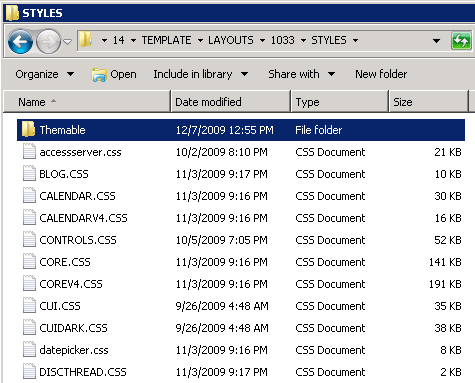
- In the “14 hive” at %ProgramFiles%\Common Files\Microsoft Shared\Web Server Extensions\14\TEMPLATE\LAYOUTS\[LCID]\STYLES\Themable;
Where [LCID] is the Locale ID. In North America, the default is “1033” for English (US).
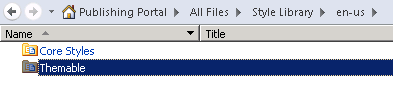
- In each web’s Style Library/Themable. These CSS files only affect the specific web and all languages.
- In each web’s Style Library/[LANG]/Themable.
These CSS files only affect the specific web and a specific language. In North America, the default is “en-US“
You can place your CSS files inside sub-folders of Themable for neatness but not the other way around… /Style Library/Themable/foo/bar.css will be recompiled by SharePoint 2010’s theming engine while /Style Library/foo/Themable/bar.css will not.
In the next episode…
Whew! We’ve now gone through how to register a style sheet so that it’s compatible with the new SharePoint 2010 theming engine.
My next post will be how to get our custom style sheets onto the out-of-the-box collaboration sites without having to create custom site templates or master pages. We’ll revisit an old friend (or new acquaintance to some), the Delegate Control!
UPDATE:
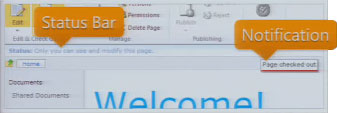 Excuse the really bad screen cap to the right… the Status Bar and Notifications are two UI elements in SharePoint 2010 which allow us to give the user information in context without distracting them. The Status Bar and Notifications are both exposed as client-side JavaScript APIs.